Invoicing
Learn to manage invoices and other financial controls in Titan Maintenance

Written by Jess Hamilton
Updated at August 11th, 2026
Table of Contents
Overview
The Invoicing Module in the Titan Maintenance platform provides a streamlined process for invoice creation, approval, and financial integration. This guide outlines the key features and steps involved in managing invoices effectively.
Prerequisites
The invoicing module allows for approved payment processing by integrating General Ledger (GL) codes and automating task-based invoicing. To enable invoicing, the system requires initial configuration, including:
- GL Code setup under Manage > GL Codes (edit or create new GL codes as needed).
-
Task eligibility criteria, which includes:
- The task has a valid GL Code.
- The task is in a workflow status defined as eligible for invoicing (ex: “Estimated”).
- The task’s chargeability status is “Chargeable.”
If single-task invoicing is enabled, an Invoice button will appear on eligible tasks.
View Eligible Tasks
To see all tasks eligible for invoicing:
- Navigate to Invoicing > Eligible Tasks.
- If single-task invoicing is enabled, you will see an invoice button on eligible tasks within this view.
Create an Invoice
There are two methods for invoice creation:
Option 1: Create an Invoice Manually
- Navigate to Invoicing > Manual Invoice.
- Create an invoice from:
- The task itself
- The eligible tasks page
- The manual invoice option in the invoicing menu
- Enter required information (including required documents) and create invoice lines for:
- Labour
- Materials
- Travel
- Other costs
Tip: If single-task invoicing is disabled, the create invoice shortcut will not appear, and only manual invoicing or EDI (Excel Upload) will be available.
Option 2: Create Invoice with EDI (Excel Upload)
- Navigate to Invoicing > EDI.
- Download a blank or pre-populated template.
- Prepare the Excel file by adding multiple tasks and their invoice details.
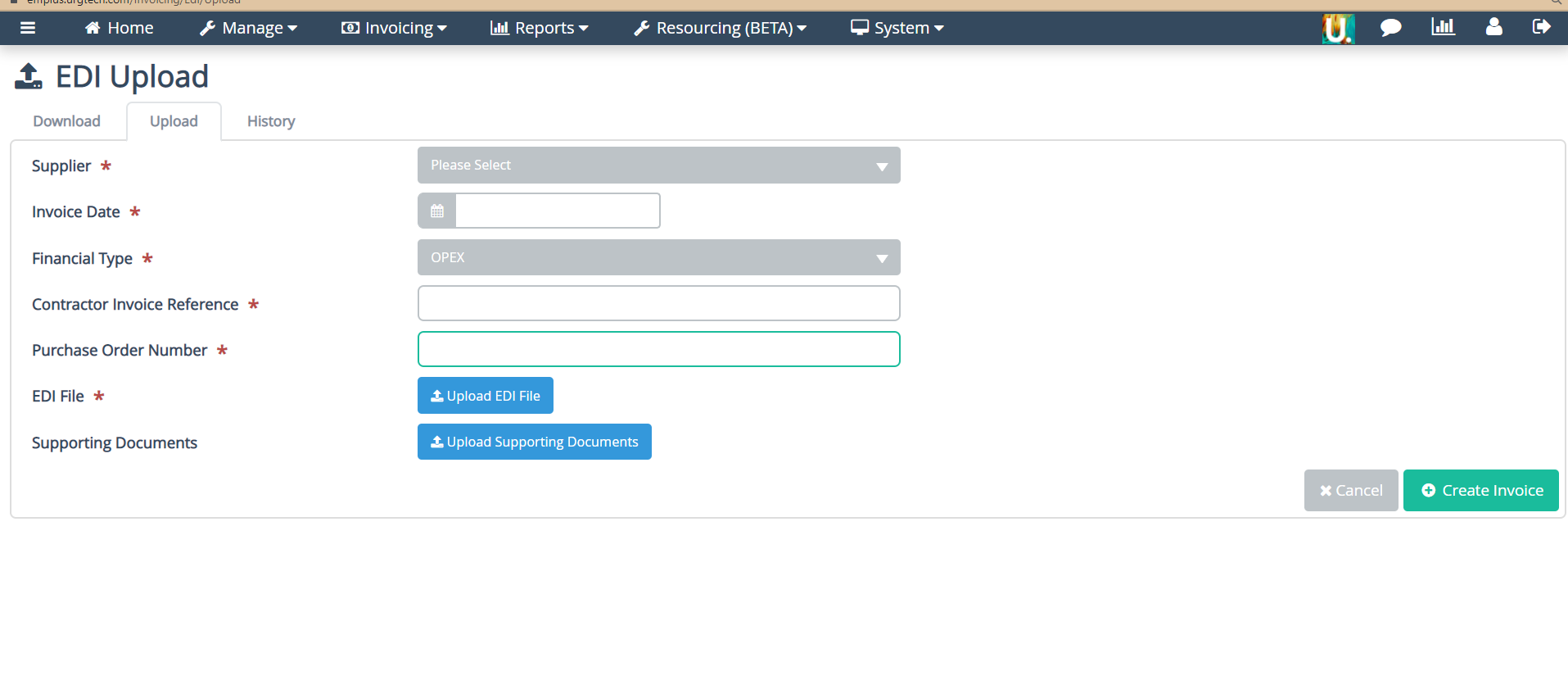
- Return to the Titan Maintenance platform, go to the Upload tab, complete the form, and click Create Invoice.
Invoice Approval Process
Once an invoice is created, it must be approved by a designated management user:
- Approvers are set up under Manage > Delegation of Authority.
- Select the appropriate invoice status and assign an approver.
- Approvers can review and approve invoices by navigating to:
- Invoicing > All Invoices
- Invoicing > Pending Approval
- From the All Invoices page, users can:
- Click the Operations button.
- Approve multiple invoices by selecting them and using the Change Status or Action All Selected Invoices buttons.